Olive & Thyme Seasonal food. Good company. | |
IT’S BEEN A LITTLE WHILE Your favorite table is waiting. | |
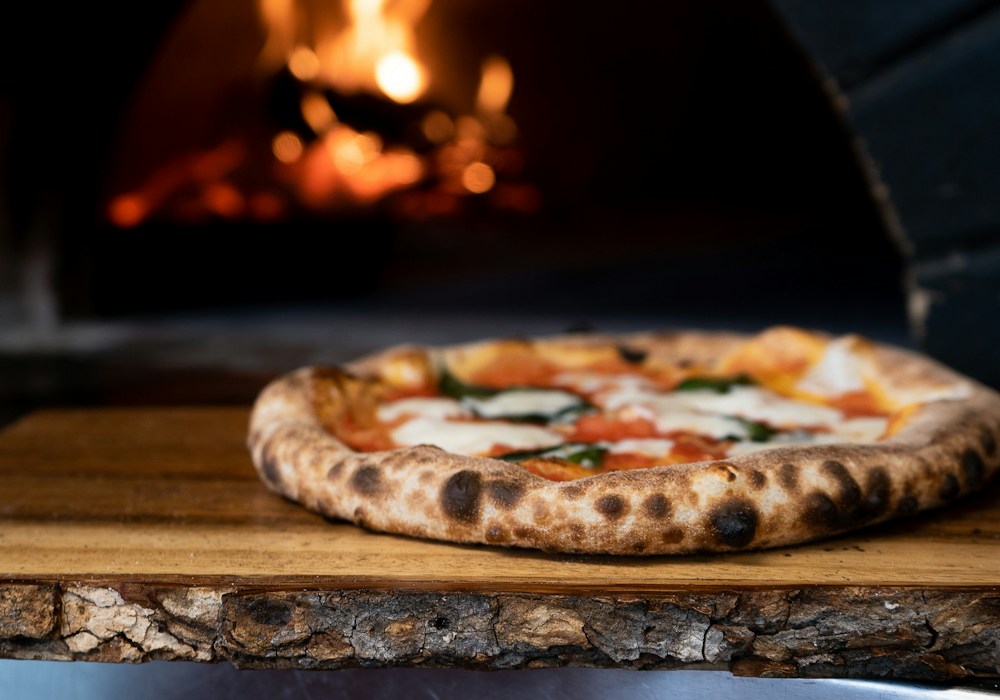 | |
Your favorite wood-fired pizza | |
We’ve missed having you around, and we’d love to welcome you back to Olive & Thyme. Come by for Your favorite wood-fired pizza and a catch-up. Take 15% off your next meal with code WELCOME15 Same warm welcome. Something delicious to look forward to.
| |
Olive & Thyme [Add your restaurant’s mailing address]Unsubscribe link: add this in your sending platform |
AN EDITABLE RESTAURANT EMAIL
Restaurant Win-Back Email Template
Give past guests a clear reason to return: a favorite dish, something new on the menu, or an offer you can honor. Edit this restaurant win-back email and export the HTML.
Content updated
Customize this templateNo account needed. Edit in your browser and export HTML.
What should this email include?
A restaurant win-back email reconnects with guests who have not visited recently. Keep the message welcoming, give one specific reason to come back, and make the next step easy. Choose the audience using reliable visit or purchase information in your own platform.
Subject line ideas
- It’s been a while. Come back to [Restaurant]
- A new reason to visit [Restaurant]
- Your favorite [Dish] is waiting
Replace bracketed details with your restaurant’s information.
How to customize this template
Pick a reason to return
Use a favorite dish, a new menu, or a specific offer. Replace the sample pizza and discount with details that fit your restaurant.
Make the invitation clear
For an offer, add an expiry date, redemption instructions, and exclusions. If no discount is needed, remove the code and explain what is new.
Choose recipients in your sending platform
DineLetter does not know when a guest last visited. Select an appropriate audience in your own platform, add your booking link, and test the imported HTML before sending.
Example email
Olive & Thyme is a sample restaurant. Replace the sample dish and offer before sending.
SubjectIt’s been a while. Come back to Olive & Thyme
PreviewTake 15% off your next meal with code WELCOME15
Questions about this template
Does a win-back email need a discount?
No. You can invite guests back for a seasonal menu, an event, or a house favorite. The sample discount is editable and can be removed.
When should I send a restaurant win-back email?
Use your restaurant’s normal return pattern and available guest data to decide when a visit is overdue. There is no single interval that suits every venue. DineLetter does not segment or schedule campaigns.
Does the sample discount code work automatically?
No. The code is example text. Create and configure a real offer in your ordering or booking system before including it in an email.
How do I send the exported HTML?
Use an email platform that supports HTML import. Add your restaurant’s mailing address and the platform’s unsubscribe link, check image URLs and links, and send a test. Email clients can render HTML differently; DineLetter does not certify compatibility with every client.
What should I check before sending?
Use an email platform that supports custom HTML import. Availability can depend on your platform and plan; check its current documentation. For example, see Mailchimp’s official HTML import guide.
Email clients support HTML differently, so preview and send a test through your platform. Mailchimp’s HTML email limitations explains why rendering can vary. These references are guidance, not a certification of DineLetter exports or an affiliation.
Make this email your own
Change the copy, colors, heading font, and image in the editor. Preview on desktop and mobile, then export HTML or copy the text.
Customize this template